Chat Diagnostics
The Chat Diagnostics page is the heart of LLMxRay. It combines a full-featured chat interface with deep, real-time analysis of every token the model produces.
Sidebar item: Chat Diagnostics (first item) Route: /
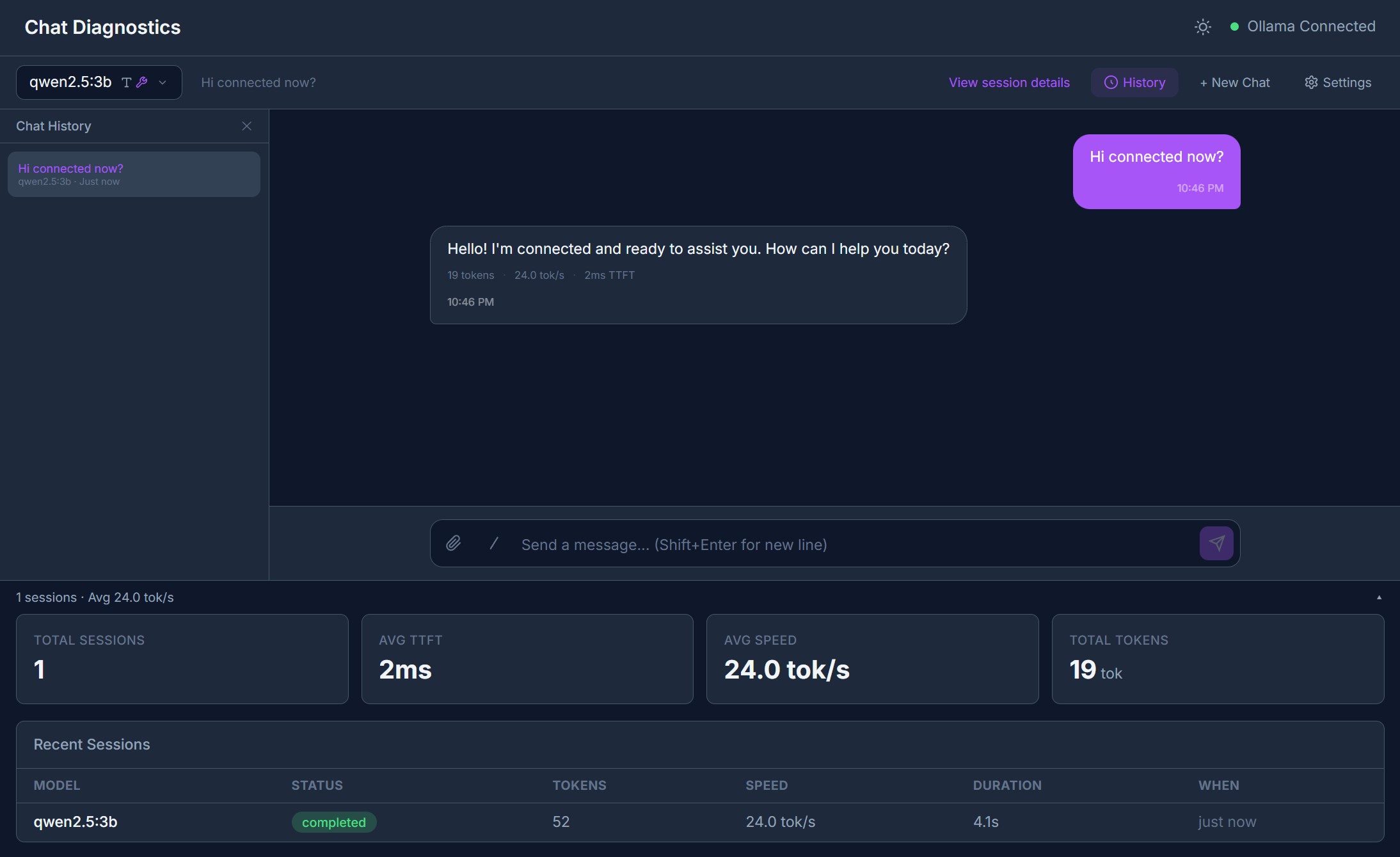
Interface Overview
The page is split into two areas:
- Left panel — Session list showing all past conversations with timestamps, model names, and token counts.
- Right panel — Active chat area with message input, streaming output, and session detail tabs.
Starting a Conversation
- Select a model from the model dropdown at the top. Embedding models are automatically filtered out — only chat-capable models appear.
- Type your message in the input area.
- Press Enter or click Send.
Tokens stream in one by one with confidence coloring: each token is tinted based on how quickly the model produced it. Faster tokens = higher confidence (greener). Slower tokens = lower confidence (more orange/red).
Confidence is an approximation
Since Ollama's /api/chat endpoint doesn't expose token logprobs, LLMxRay approximates confidence from inter-token latency. This is clearly labeled in the UI. For real logprobs, use the Benchmark feature.
Features
Markdown Rendering
Model responses are rendered as rich markdown with syntax-highlighted code blocks.
File Attachments
Click the attachment button to upload files. For vision models (like LLaVA), you can paste or upload images directly — the model will analyze them.
Slash Commands
Type / in the input to see available slash commands for quick actions.
Multi-turn Conversation
Each conversation maintains full message history. The model sees all previous messages for context.
Thinking Control (v0.4.7+)
For models that report the thinking capability (DeepSeek-R1, QwQ, etc.), a Thinking chip appears in the Chat Settings panel with three modes:
- Off — no
thinkfield sent, model behaves like a standard chat model - On — sends
think: trueon/api/chat, the model produces an internal reasoning trace before the response - Max — sends
think: "max", requesting the largest reasoning budget the model supports (added in Ollama v0.21.3)
The reasoning trace appears in the Reasoning tab of the session deep-dive. This control is hidden for models that don't support thinking.
Response Format Control (v0.4.7+)
A Response format picker in the Chat Settings panel forces structured output. Three modes:
- Free-form text — no constraint, the default
- Valid JSON (any shape) — sends
format: "json", the model must return parseable JSON - JSON Schema (strict) — sends a full JSON Schema object as
format. A textarea appears where you can paste any valid schema; the page validates the JSON as you type. The model is constrained to match the schema exactly.
JSON Schema mode is especially useful for benchmark answer enforcement, agent tool-input validation, and RAG citation extraction.
Response Quality Gates
Every completed assistant response is automatically analyzed by five client-side detectors. When issues are found, small colored badges appear below the response metrics:
| Detector | Condition | Severity |
|---|---|---|
| Repetition | >50% repeated 4-grams | Fail (red) |
| Repetition | >30% repeated 4-grams | Warn (yellow) |
| Refusal | Matches 8 common refusal patterns | Warn |
| Gibberish | >40% non-ASCII chars (text >20 chars) | Warn |
| Empty | 0 words | Fail |
| Empty | 1-9 words | Warn |
| Truncation | Hit token limit or >90% budget without clean ending | Warn |
A small colored dot also appears in the metrics row for quick scanning. If all checks pass, nothing extra is shown — no news is good news.
All analysis is client-side
Quality checks run instantly in your browser on the displayed response text. No API calls, no external services.
Session Deep Dive
Click any session in the left panel to explore six analysis tabs:
Stream Tab
Every token with timing data displayed in a scrollable list. Above the token list, a metrics dashboard shows:
- TTFT (Time to First Token) — How long the model took to start responding
- Tokens/sec — Generation speed
- Total tokens — Prompt + completion token counts
- Latency chart — Visual timeline of inter-token delays
Reasoning Tab
If you're running a reasoning model like DeepSeek-R1, the <think> blocks are automatically parsed and displayed step by step. Each reasoning step is categorized as thought, observation, action, conclusion, or reflection.
Introspection Tab
Visualizations of layer activations, attention heatmaps, and model architecture.
Illustrative data
These visualizations use synthetic data to demonstrate what real introspection would look like. They are clearly labeled as "Illustrative" in the UI. Real introspection requires model internals that Ollama doesn't expose.
Tools Tab
A timeline of any tool calls the model made during the conversation, showing:
- Tool name and parameters
- Execution result
- Duration
Agent Tab
A state-flow graph showing how an agent-style prompt progressed through planning, tool calls, and synthesis steps.
Prompt Tab
An anatomy breakdown of your prompt showing:
- Identified sections (system, user, context, tools, examples)
- Token counts per section
- Overall structure analysis
Tips
- Session persistence — All conversations are stored in IndexedDB and survive browser refreshes.
- Model switching — You can switch models mid-session. The new model will see the full conversation history.
- Performance — The token store uses
shallowReffor performance with thousands of tokens.