
My System
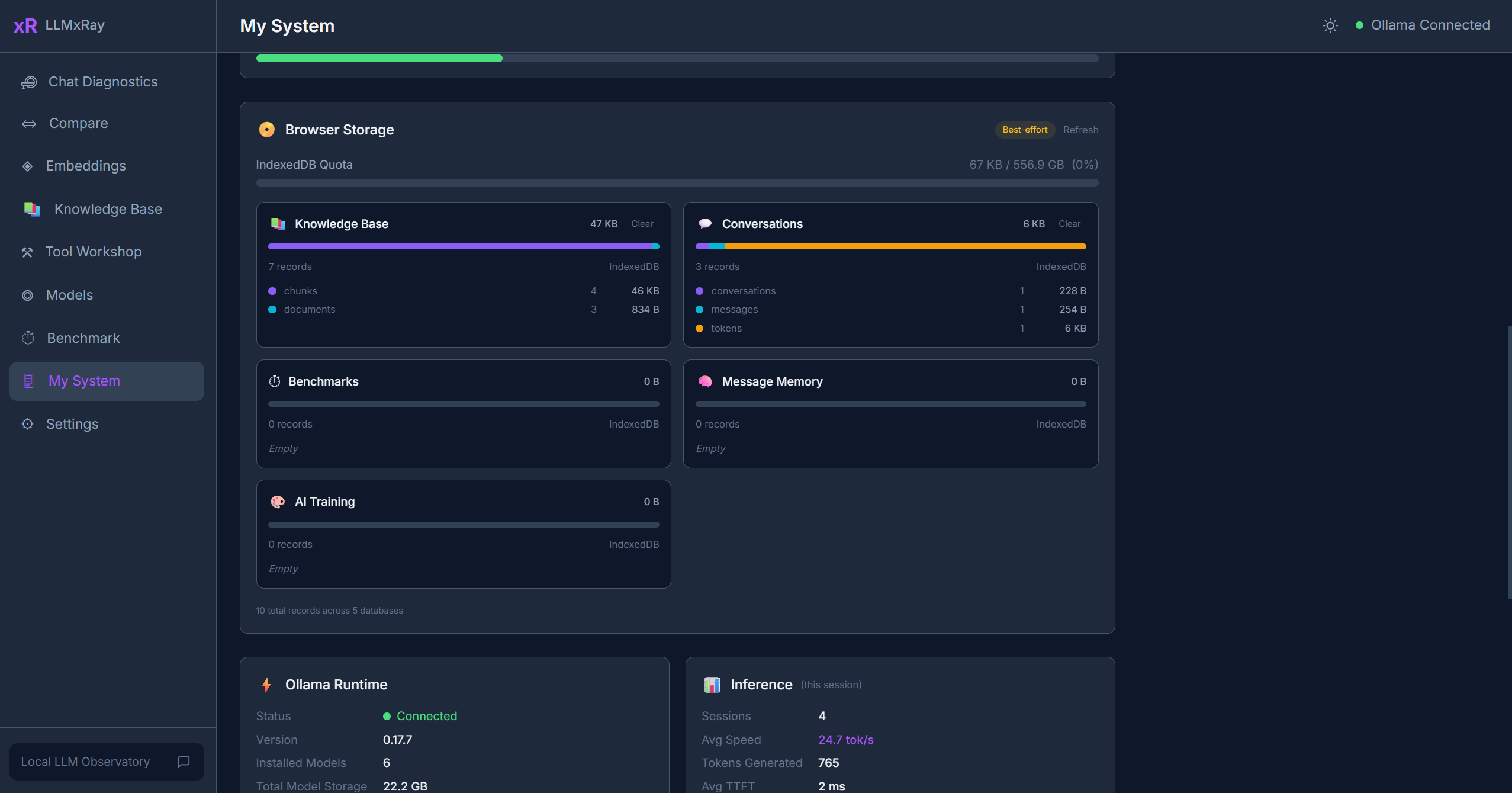
The System page shows real hardware specifications and live Ollama status — actual data from your OS, not browser estimates.
Sidebar item: My System Route: /system
Hardware Detection
LLMxRay uses a custom Vite plugin (vite-plugin-system-info) that queries the operating system directly:
| Platform | Detection method |
|---|---|
| Windows | PowerShell commands |
| Linux | /proc filesystem + lspci |
| macOS | sysctl commands |
Displayed Information
- CPU — Model name, core count, architecture
- RAM — Total installed memory with live usage
- GPU — Model name, VRAM, driver version
- Storage — Disk capacity and available space
First-time setup
Hardware information is read when the Vite dev server starts. If the System page shows "Restart dev server", stop and restart npm run dev.
Ollama Status
The Ollama section shows:
- Connection status — Whether Ollama is reachable
- Running models — Which models are currently loaded in memory
- Memory allocation — How much RAM/VRAM each loaded model is using
- Inference settings — Default parameters for the running instance
Storage Usage
A visualization of IndexedDB storage used by LLMxRay:
- Total storage used by the origin
- Breakdown by database (conversations, benchmarks, RAG vectors, training data)
- Visual percentage bar
Tips
- High RAM usage? — Ollama keeps models in memory after first use. Use smaller quantized models (Q4) or reduce context length in Settings.
- GPU not detected? — Make sure your GPU drivers are up to date. On Linux, ensure
lspciis available. - The storage visualization refreshes automatically when you navigate to this page.